
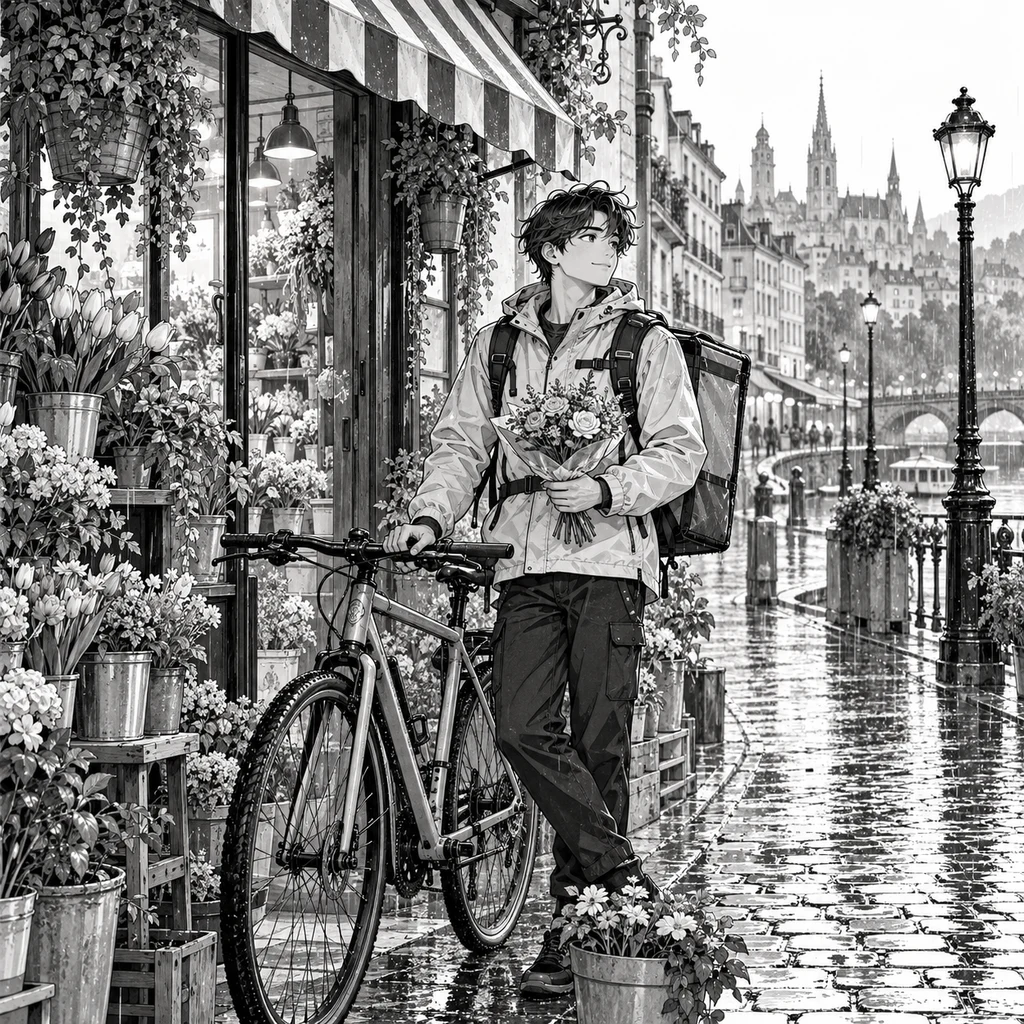
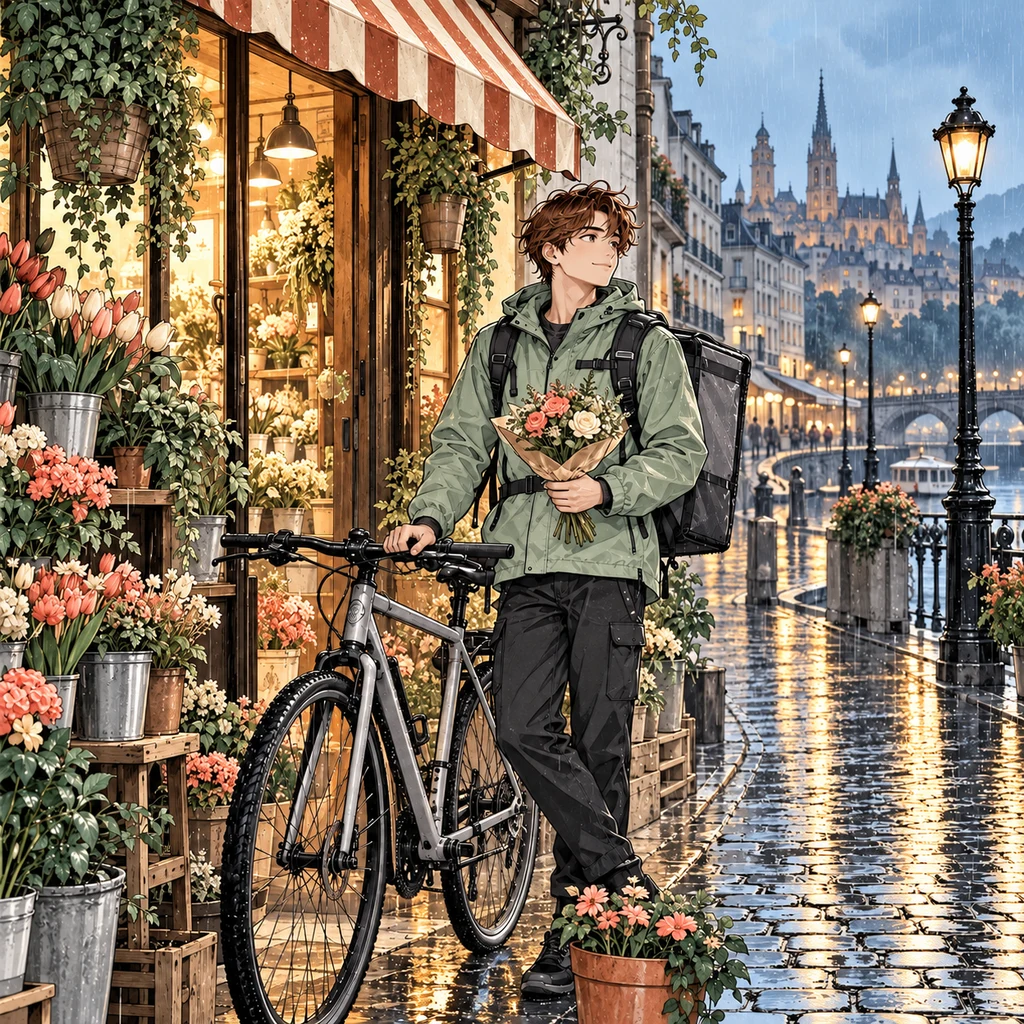
A delivery through the rain
Compare the bouquet, bicycle spokes and wet street reflections with the black-and-white drawing.
Click an image to view full size ↗Drop up to 20 images here. Results keep your upload order.
PNG, JPG, WebP · 100 MB totalKeep this tab open. Files and downloaded results stay in this browser session; refreshing clears them. Coloring sends each selected image to our server and Replicate. Privacy details.
New original AI-created artwork and matching color studies. These are illustrative references, not DDColor outputs.
Compare the bouquet, bicycle spokes and wet street reflections with the black-and-white drawing.
Click an image to view full size ↗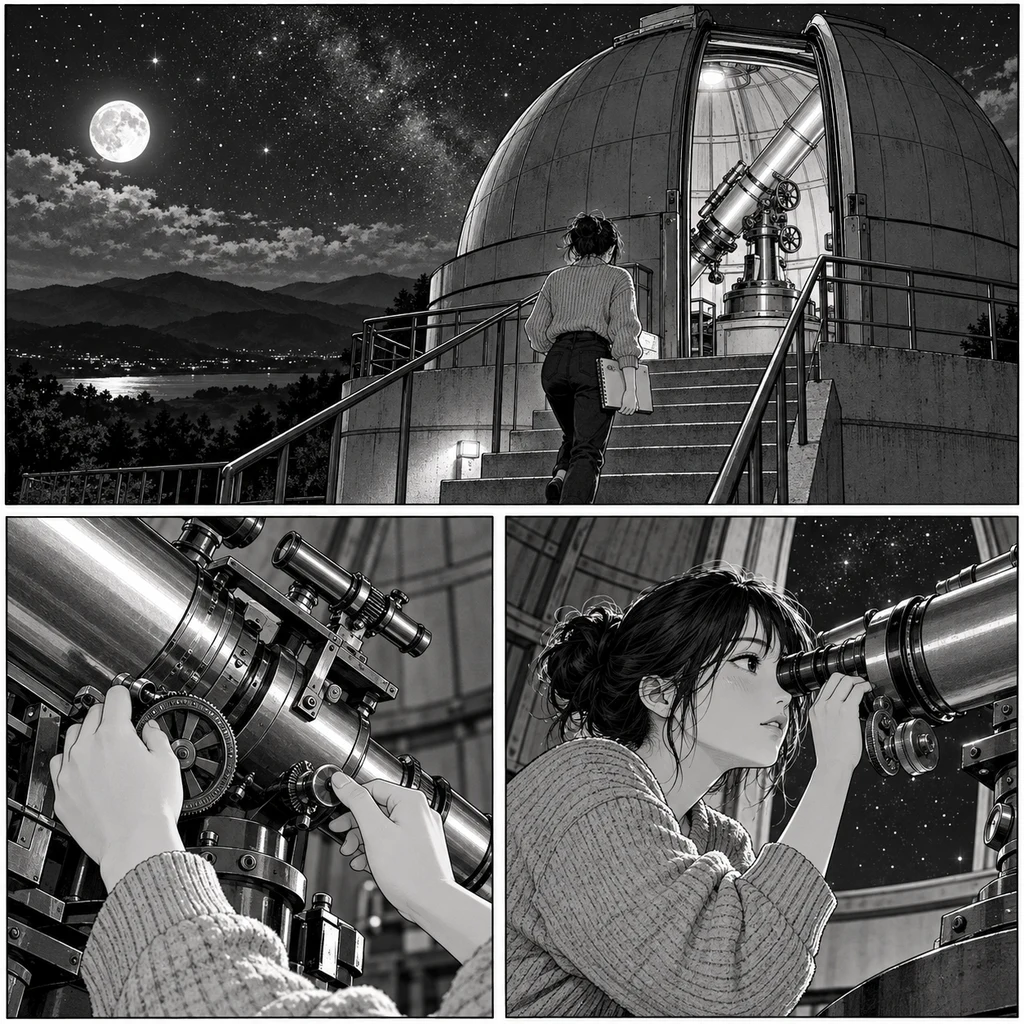
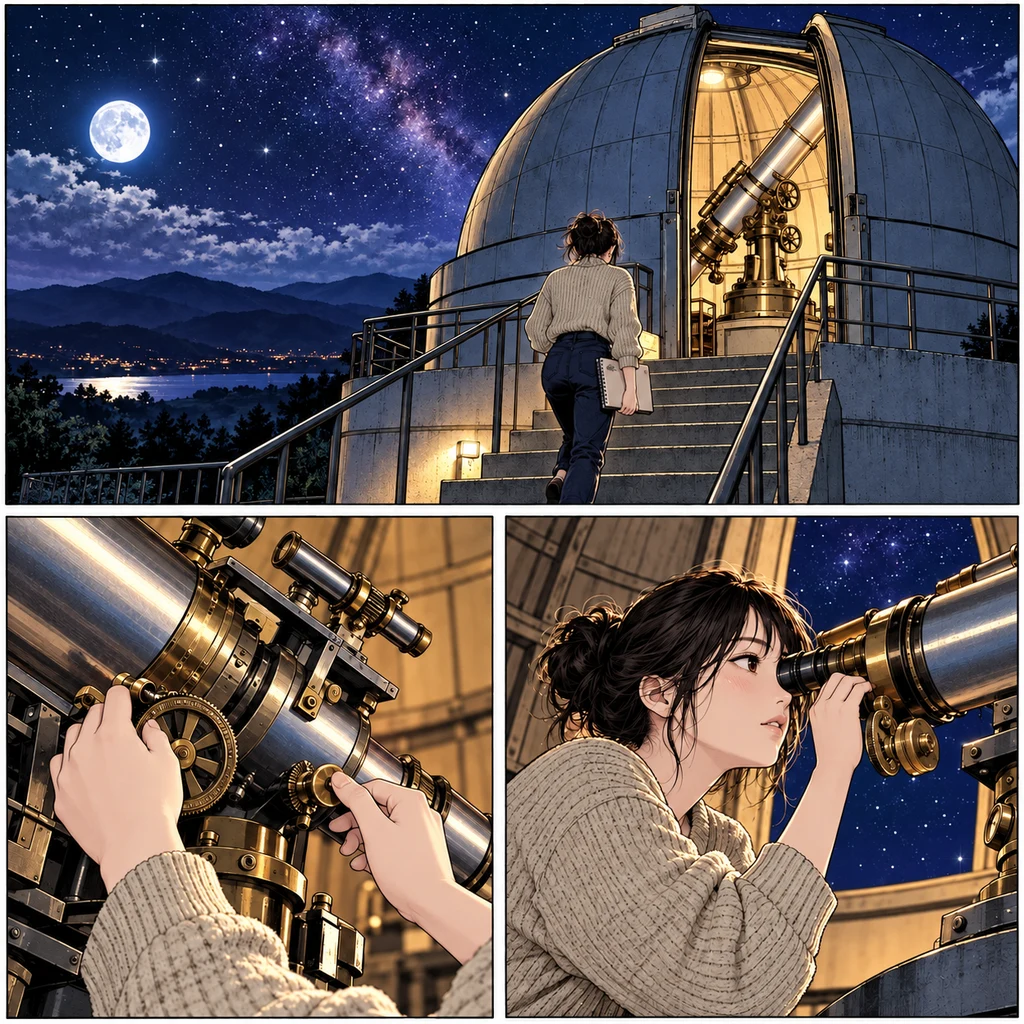
Follow the same three panels from black ink to moonlit color, then compare the face, telescope details and page gutters.
Click an image to view full size ↗The Batch Manga Image Colorizer adds automatic color to a selection of black-and-white manga pages, panels or line-art images. Instead of submitting and downloading each file in a separate session, you can keep up to 20 images in one queue and collect the completed PNG results in a ZIP.
Batch describes how your files are managed: the workspace sends one image at a time to DDColor through Replicate. Each page receives its own color interpretation. This is useful for reviewing several drawings together, but it does not create a shared character palette across the batch.
Build your image queueChoose up to 20 PNG, JPG or WebP images. Review their upload order and remove any queued image before you start.
Sign in and start the queue. Pages run one at a time, with a visible status for each image. Pause after the current page if needed.
Compare original and colored thumbnails, open them at full size, and save completed images individually or together in a ZIP.
Add full manga pages, individual panels or separate character drawings in PNG, JPG or WebP format. Check the queue before starting and remove files you do not want to process.
See which image is queued, coloring or saved. Pause after the current image, then continue the remaining queue when you are ready. Keep the browser tab open throughout the session.
If a task ID has arrived before a connection problem, resume checks that task again. A confirmed model failure can be retried as a new coloring request; successful pages stay available in the current session.
Save individual colored PNGs or export the completed selection as a ZIP. Numbered filenames follow queue order and keep source files with the same name from overwriting each other.
Use readable linework and lettering. Heavy JPEG artifacts, blur and uneven scan backgrounds make it harder to judge whether color has changed a face, a panel border or a speech bubble.
For a sequential page set, prepare names such as chapter-01-page-001.png and review the displayed queue. The ZIP follows the order shown in the workspace rather than detecting chapter order from the artwork.
Try a page with recurring characters, clothing, backgrounds and screentones in the single-image colorizer first. Use that result to decide whether the model suits the rest of your selection.
Compare hair, eyes, clothing and lighting across neighboring pages. Independent AI coloring can change recurring colors, so keep your originals and allow time for manual corrections.
Start with the single-image manga colorizer to check one page, or read the manga coloring guide and line art coloring guide for source preparation.
Explore color drafts for a small set of your own comic pages, then inspect each result before editing or publishing.
Review several monochrome drawings in one session to study how automatic color changes contrast, mood and the focus of a scene.
Break an image-based chapter into selections of up to 20 files. Download each completed ZIP before clearing the queue or moving to the next selection.
Review your available balance before starting. See coloring plans and credits. For file handling and retention, read our privacy policy.
This tool uses DDColor through Replicate. It estimates a palette without prompts or reference colors. Review faces, lettering, linework and recurring character colors before using the results.
Choose the workspace that fits your files.
Select up to 20 images, with a maximum of 10 MB per image and 100 MB total. The queue processes them one at a time.
Each accepted image request uses one credit. Twenty images need 20 credits. Confirmed failed predictions are refunded; retrying a failed prediction starts a new request. Resuming an existing task only checks or downloads that task.
No. Keep this tab open while processing and exporting. Files and saved results are held in this browser session and are cleared on refresh or navigation. A task already submitted to Replicate may still finish after you leave.
DDColor estimates colors independently for each page. This workflow does not lock character colors or accept a custom palette. Compare recurring characters and make any corrections in your image editor.
A confirmed failed page can be retried. If a connection is interrupted after a task ID has been received, Resume checks the same task without recoloring. Unconfirmed submissions are flagged instead of being automatically submitted again.
Yes. Use the Manga PDF Colorizer to choose up to 20 pages from a PDF and export the selected colored pages as a new PDF.
AI coloring requires an account and available credits. Each image request uses one credit. Check the Pricing page and your account balance for current trial credits and paid options; there is no unlimited free batch processing.
You can process a chapter in selections of up to 20 image files, subject to the upload limits and your credits. Download each selection before clearing it. This workspace does not automatically merge separate batches or maintain a persistent chapter project.
No. The current DDColor workflow estimates colors automatically from each image. It does not accept text prompts, a reference palette or a batch-wide character color lock.
No. The ZIP contains completed colored PNG results with numbered filenames. Keep your source files separately. Queued, unconfirmed and failed images are not included in the ZIP.