
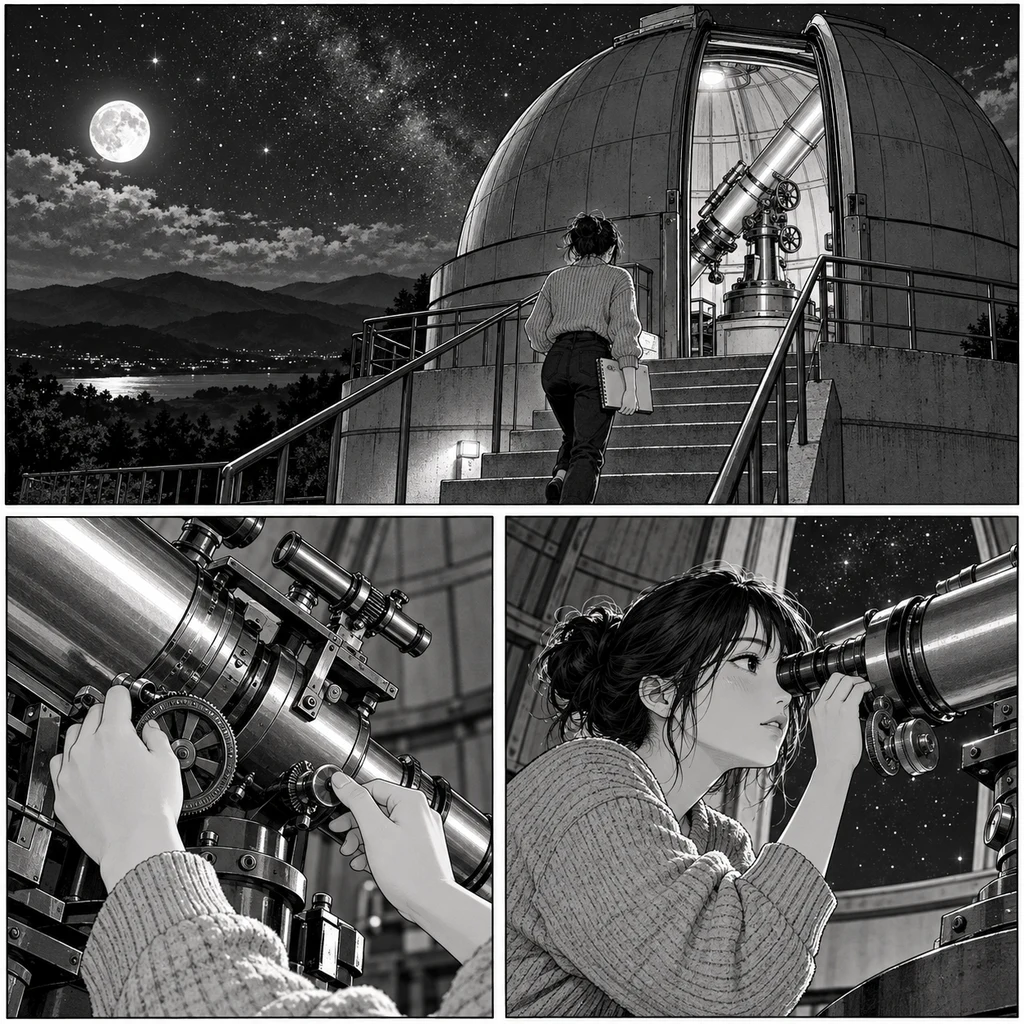
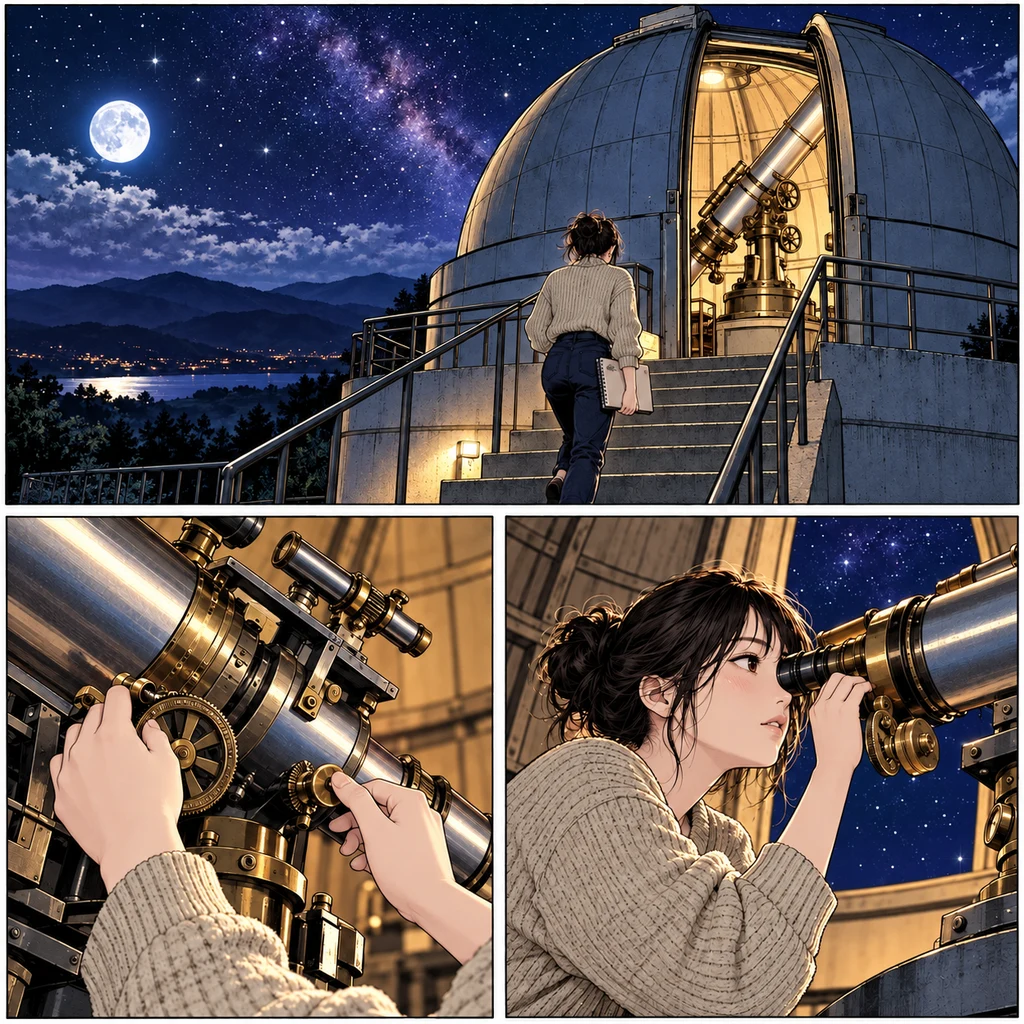
An evening at the observatory
Follow the same three panels from black ink to moonlit color, then compare the face, telescope details and page gutters.
Click an image to view full size ↗Select the pages you want to color before starting.
PDF · up to 30 MB · select up to 20 pagesKeep this tab open. Files and downloaded results stay in this browser session; refreshing clears them. Coloring sends each selected image to our server and Replicate. Privacy details.
New original AI-created artwork and matching color studies. These are illustrative references, not DDColor outputs.
Follow the same three panels from black ink to moonlit color, then compare the face, telescope details and page gutters.
Click an image to view full size ↗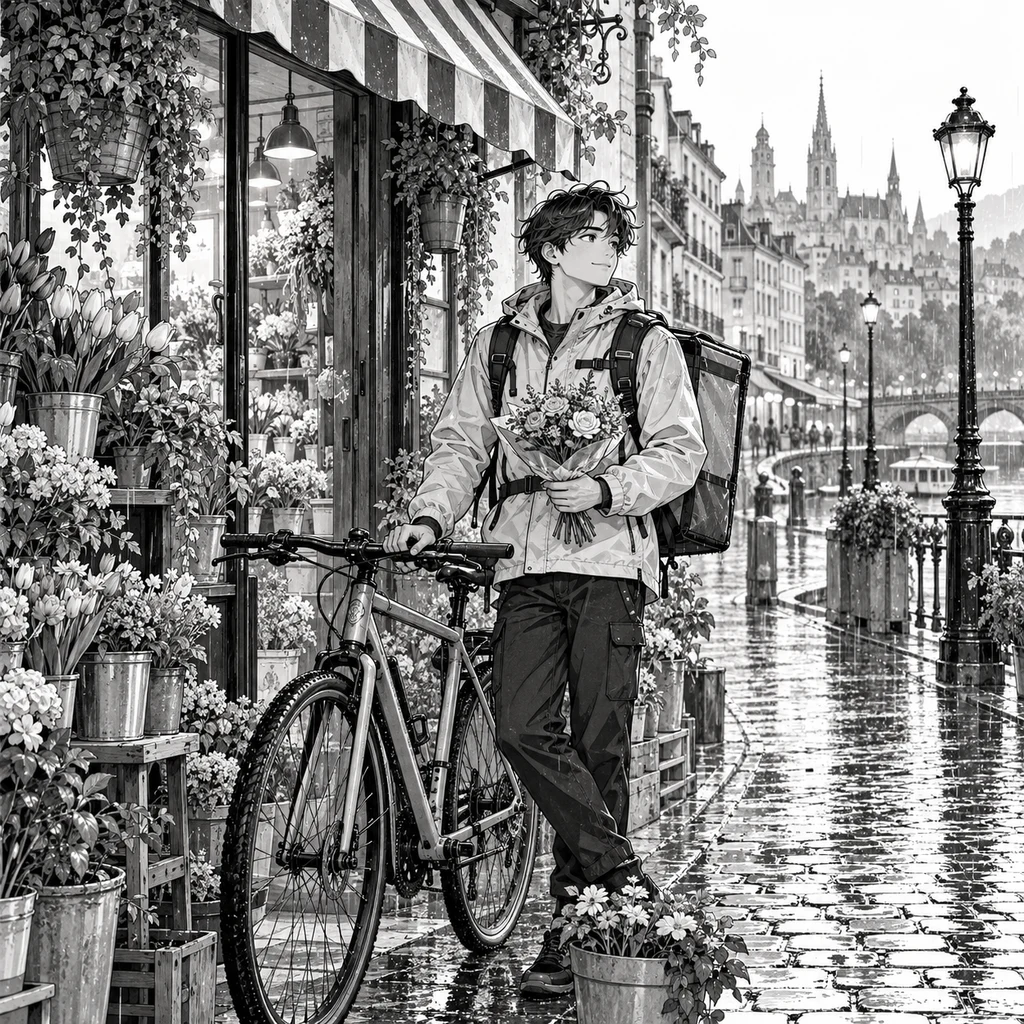
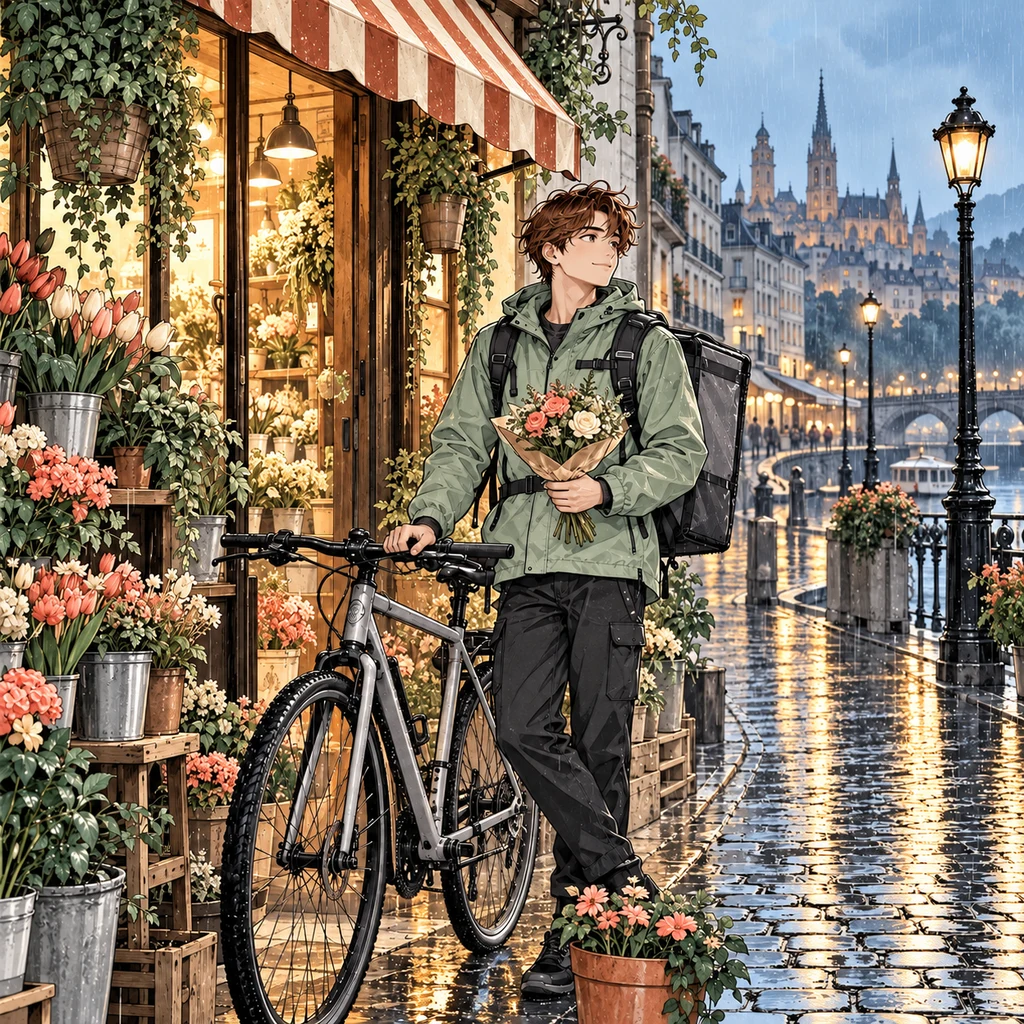
Compare the bouquet, bicycle spokes and wet street reflections with the black-and-white drawing.
Click an image to view full size ↗The Manga PDF Colorizer lets you open a black-and-white manga PDF, choose the pages you want to color and download those selected pages as a new image-based PDF. It is a focused workflow for a short document or a section of a longer chapter, with a maximum of 20 selected pages per session.
Your browser opens the original PDF and converts only the selected pages into images for coloring. Those page images are sent to DDColor through Replicate. Once every selected result is saved, the browser assembles a colored PDF in source document order; the original PDF file itself is not uploaded.
Select your PDF pagesOpen one unlocked PDF up to 30 MB. Choose page numbers or ranges, such as 1-5, 8. The original PDF stays in your browser.
Each selected page uses one credit. Pages are rendered locally at a maximum long edge of 2000 pixels, then sent individually for AI coloring.
When all selected pages are saved, download a colored PDF in original document order. Selected page dimensions are retained.
Choose a continuous range or combine individual pages, such as 1-5, 8. Duplicate page numbers are counted once, and selected pages are processed in the order they appear in the PDF.
The estimate is based on your selected pages at one credit per page. For example, selecting 1-5, 8 means six pages and an estimated six credits for the initial requests.
The exported PDF retains the displayed size and orientation of each selected source page. Colored images are fitted proportionally, including when portrait and landscape pages appear in the same selection.
PDF export becomes available after every selected page is saved, so failures are not silently omitted. You can also download individual completed page images while reviewing your results.
Choose a PDF without password protection, up to 30 MB. Clear scans with intact panel borders and readable lettering give you a better basis for comparing the original and colored versions.
The selector counts physical PDF pages from 1, including covers and blank pages. These numbers may differ from page numbers printed inside the artwork. Check your PDF before entering a range.
Test a representative page before spending credits on a longer section. Exclude covers, blank pages and pages that are already in color when they do not need processing.
Inspect faces, dialogue, fine ink lines and screentones. Pages are rendered with a maximum long edge of 2000 pixels, so retaining page dimensions does not mean retaining original vector detail or print resolution.
Start with the single-image manga colorizer to check one page, or read the manga coloring guide and line art coloring guide for source preparation.
Create a color draft from selected scanned pages without manually exporting each page into an image editor first.
Choose a few consecutive pages to review the effect of color on pacing, contrast and character recognition. Export only that selected sample.
For longer documents, choose and download sections of up to 20 pages. Exported sections remain separate PDFs; this workspace does not automatically merge them into a full book.
Review your available balance before starting. See coloring plans and credits. For file handling and retention, read our privacy policy.
This tool uses DDColor through Replicate. It estimates a palette without prompts or reference colors. Review faces, lettering, linework and recurring character colors before using the results.
Choose the workspace that fits your files.
The browser renders your selected PDF pages into images, sends those images through the existing coloring service, then assembles the saved results into a new PDF.
Yes. Choose up to 20 pages using numbers and ranges such as 1-5, 8. Only selected pages are included in the exported PDF, in original document order.
The output is an image-based PDF. Selectable text, links, bookmarks, annotations and other interactive structures are not carried over. Model processing can also change lettering and fine lines; inspect the results.
The selected pages retain their original displayed dimensions and orientation. Results are fit proportionally onto each page. This preserves the page format, not the original vector detail or resolution.
Retry confirmed failed pages or resume an existing task after a connection interruption. PDF export unlocks once every selected page is saved, so failed pages are not silently omitted. Completed images can also be downloaded individually.
Keep the tab open. Refreshing or leaving clears the local document and results. For large documents, process and download sections of up to 20 pages at a time.
Each page is colored independently by DDColor. Cross-page character colors and exact preservation of linework or lettering are not guaranteed.
Opening a PDF and choosing pages locally does not start AI coloring. Generating color requires an account and credits, at one credit per selected page request. Check Pricing for current trial and paid options.
You may open a PDF with more than 20 pages if it fits within 30 MB, but select at most 20 pages for each session. Download the completed section before starting a new selection. Separate exports are not automatically combined.
No. Only selected pages are included. For example, choosing pages 2 and 5 produces a two-page PDF with source page 2 first and source page 5 second. Unselected pages are not copied from the original.
This workspace accepts PDF documents. For separate PNG, JPG or WebP files, use the Batch Manga Image Colorizer. CBZ and CBR comic archives are not supported directly.
No. The source document stays in your browser and the export is a separate file. Keep the original for linework, lettering and any text or interactive document features you may need later.